
GuideProducts
Muse connectors: link your apps, control what Muse can do
A connector is a ready-made link between Muse and one of your apps or accounts — email, calendar, documents, payments, work tools. With a connector in place, Muse can read and act inside tools you already use, instead of you copying things back and forth. This guide covers how to find the connectors in your account, connect the right account, understand what Muse may do, disconnect access, and fix a missing connector.
Find the connectors in your account
Your account's own connector list is the source of truth — not an announcement, not a tracker. To see it:
- Open Muse and go to Settings, then Connectors. [1]
That list shows what is offered to you right now. If a connector you expected isn't there, it isn't offered to your account currently. Appearing in the list means it's offered; completing setup may still require authorizing with the service.
What Meta has announced
Meta has announced connectors in more than one place, and the announcements overlap — so keep announced separate from available to you:
- The small-business announcement's set. Asana, Box, Canva, Dropbox, Figma, Granola, HighLevel, Intuit QuickBooks, Klaviyo, Lovable, Notion, Shopify, Slack, Stripe, and Zoom, plus email, calendar, Instagram, and Meta business accounts — checked October 2, 2026. [2][1]
- Partners named at Meta Connect. Including Walmart, Best Buy, Sephora, Wayfair, PayPal, Instacart, GitHub and Box, with Expedia coming soon. [3] Naming is not shipping: a third-party tracker reports many of them aren't live everywhere yet. [4]
The two announcements overlap — Box, Notion, and Granola appear in both — so don't add the lists together. And neither list is your list: to see what's offered to you, open Settings → Connectors in your Muse account.
Connect the right account
Meta gives two ways to connect. You can simply ask Muse — for example, "Connect my Gmail" — or do it by hand: [1]
- Go to Settings, then Connectors.
- Tap Connect next to the connector you want, and read the information it shows.
- Tap Continue to authorize the connection.
- Follow any additional login or authorization steps.
Step 4 is where the right account matters. The login screen signs in a specific account — your work Gmail vs your personal Gmail, for instance. Check which account is signing in before you continue. If you connect the wrong account, disconnect it in Settings → Connectors and reconnect, checking the login step shows the account you intend.
A practical example. You want Muse to manage your work email. Ask "Connect my Gmail," and at the login step make sure it's your work Google account — not the personal one your browser defaulted to. Read what the connector requests, tap Continue, and you're linked. From here you can tell Muse to search for a message, draft a reply, or summarize a thread. By default, Muse asks for approval before sending email — check your approval settings before using it. [1]
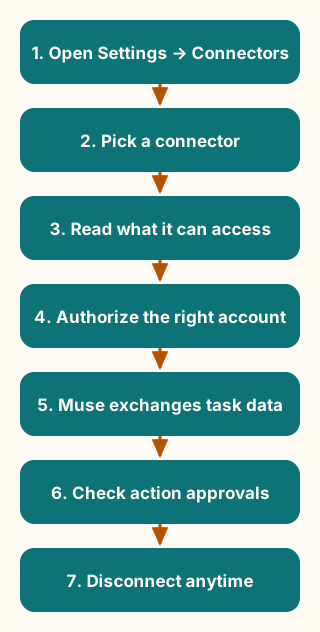
Figure explanation: You open Settings, then Connectors, and pick the connector you want. You read what it can access before authorizing, and make sure the login uses the right account. Meta says Muse is designed to exchange only the data needed for tasks. By default it asks for approval before important actions — check your approval settings. You can disconnect at any time. The diagram is a simplified illustration, not a screenshot.
Understand permissions
| Question | What Meta's help page says [1] |
|---|---|
| What data does Muse get? | Meta says Muse is designed to exchange only the data needed for tasks: connecting email lets Muse search your email — it won't download your whole inbox unless you tell it to. [1] |
| Can it act, or only read? | Many connectors can be set to retrieve-only, so Muse can read but not take actions like sending a calendar invite. [1] |
| Does it ask before acting? | By default, Muse asks for approval before sending email. Check your approval settings before using it. [1] |
| Can a connector reach out first? | Some can share information proactively — calendar connectors can update Muse when your schedule changes. Meta identifies these before you connect. |
| Who else sets the rules? | Each connector has its own terms and privacy policy governing how it uses information it receives. |
| What about Meta's own apps? | Facebook, Instagram, and Threads connect automatically if your accounts are in the same Accounts Center. Manage them there. |
| What about Apple Health or Android SMS? | After setup, you manage that access in your device settings, not in Muse. |
| What about Google Workspace data? | Use of Workspace API information follows Google's User Data Policy, including its Limited Use requirements. |
Disconnect access
You can disconnect a connector at any time in Settings → Connectors. Disconnecting stops Muse from exchanging data with that connector. [1]
Two things to know:
- Disconnecting stops future access, not past memory. Information Muse already used with that connector may still be in its memories and your conversation history. You can ask Muse to forget those interactions — that's a request to Muse, not proof the data is fully deleted. [1]
- Disconnecting is not deleting. If you want the underlying account data gone, do that in the app itself — disconnecting the connector only cuts Muse's access.
If your connector isn't there: custom connectors
If the service you want isn't in your connector list, a custom connector is an option to investigate — you can ask Muse to create one. Muse guides you through it, which can involve retrieving API information from the service, and stores that API information in its Secure Credentials Store. [1]
One caution, straight from Meta: Meta doesn't review custom connectors or how they use your information. Grant access with care and read the provider's privacy policy before connecting anything sensitive. [1] Don't paste passwords or API keys into ordinary chat.
Troubleshoot a missing connector
- Check your own list first. Open Settings → Connectors. If it's there, it was a discovery problem, not an availability problem.
- Named isn't live. Meta Connect named partners like Walmart, Best Buy, and Sephora as additions — a third-party tracker reports many aren't live everywhere yet. [3][4]
- Check what's offered. Open Settings → Connectors in your Muse account. Appearing there means it's offered; completing setup may still require authorizing with the service.
- Wrong account connected? Disconnect it, then reconnect, checking the login step shows the account you intend.
- Still missing? A custom connector is an option to investigate, with the caution above. [1]
Sources
- Meta, How Muse works with Connectors, checked October 3, 2026.
- Meta, The Future Is for Everyone: Muse for Small Business, published September 29, 2026; checked October 2, 2026.
- Meta, Everything announced at Meta Connect 2026, September 2026; checked October 3, 2026.
- Ship with Muse, Meta Muse Connectors List and How to Build One, updated September 28, 2026; checked October 3, 2026. Reported: connector counts and availability.
Start from a template
People share Grok Bots you can add and then change to fit your job. Each template opens on x.ai. bot.ski never installs anything.
Comments
Comments are from bot.ski members. They aren't reviewed by xAI.