
Learn


TroubleshootingTesting & troubleshootingCompanion to Put your Bot on a schedule
Why did my Grok Bot routine not run?
A missing report does not tell you where a scheduled job failed. It may never have started, stopped partway through, or finished somewhere you have not checked yet.
Start with the routine's recent run history and intended output. Avoid starting another copy until you know what the previous run did.
First, identify the situation
| What you find | What to investigate next |
|---|---|
| No recorded run at the expected time | The enabled state, schedule, timezone, and owning Bot. |
| A run began but did not finish | Its latest activity, blocked step, access, or usage. |
| A run completed but no alert arrived | The saved result and notification settings. |
| An event should have started it | Whether the source and event-matching rule still apply. |
Grok Bot's official troubleshooting checklist covers these scheduling, connection, reachability, and account checks. It also recommends inspecting failures in recent history. [1]
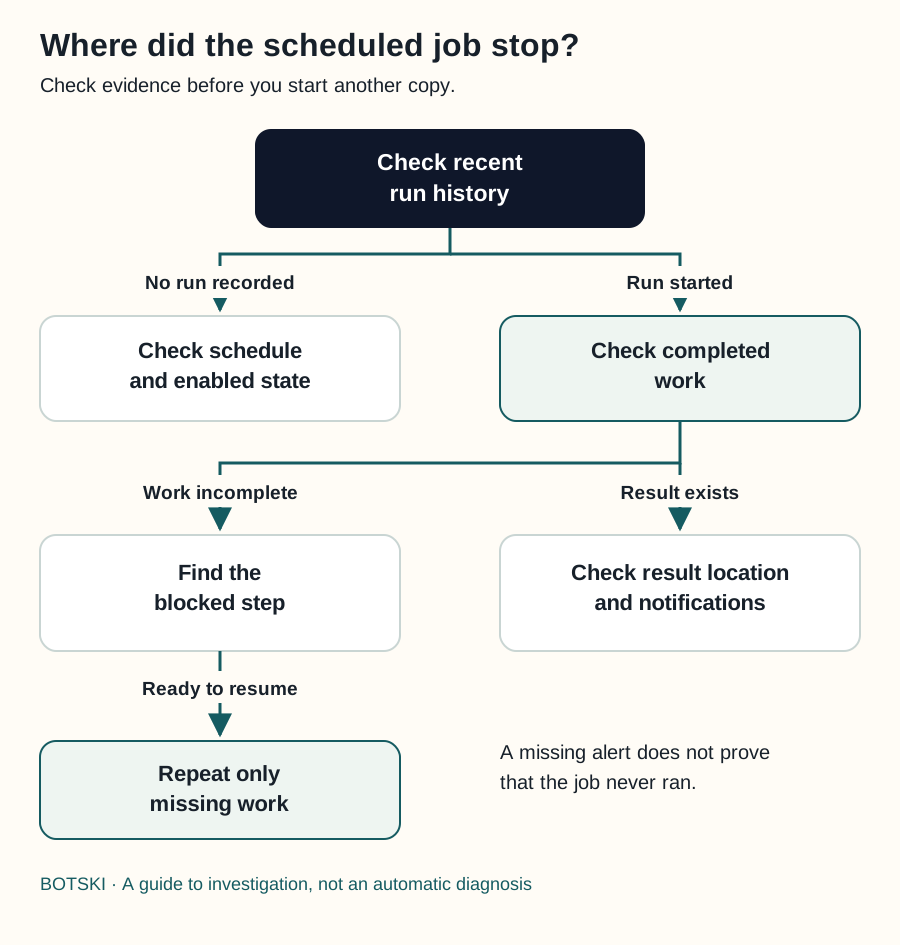
Swipe sideways to see the whole diagram, or open it full size.
Figure explanation: The diagram begins with recent run history. If no run is recorded, investigate the schedule and enabled state. If a run started, inspect completed work. Incomplete work leads to finding the blocked step and repeating only what is missing once ready. If a result exists, investigate the output location and notification settings. These branches are starting points for investigation; missing history alone is not proof of a scheduler failure.
Check the clock and the owner
Compare the time you expected with the routine's next run and configured time zone. A screenshot of “9:00” is incomplete without the zone and date.
Open the owning Bot's conversation details, then Routines. Check whether the routine is paused. Grok Bot can also pause unattended routines after an unanswered check-in following a long absence. [2]
Do not assume a missed occurrence will automatically catch up. Establish which period the replacement report should cover before requesting it.
Find the last completed step
Suppose the job reads sales records, calculates totals, saves a report, and then asks you to review a message. The report might already exist even if the final message is waiting.
Look for the latest saved file, completed action, or explicit error. If you see an approval, login, or question, resolve that specific blocker. Usage limits can also interrupt work. [1]
If the Bot itself is silent or its computer is unreachable, move to when your Bot gets stuck. Recreating a scheduled job will not repair an account-wide problem.
Check the result before blaming the alert
Notifications and completed work are different things. Grok Bot may suppress notifications while focused, and mobile delivery also depends on permissions and rollout. [3] Open the conversation and output destination before declaring the job missing.
Closing your laptop does not by itself stop cloud work. [4] If your particular workflow depends on a resource available only through your desktop, check that dependency separately.
Retry only the missing work
Ask what already happened before repeating a run. A second report might be harmless; a duplicate message, order, or database change may not be.
Use a harmless sample or draft destination for Test run: it can perform real external actions. [1] Then request only the missing work, with a clear date range and output name.
After a material workflow change, Botski recommends two successful manual runs or drills before returning to unattended work. This is a Botski quality standard, not a product-enforced requirement.
Record what failed, the evidence, and the correction. Update the method if needed, then return to the schedule setup guide.
Sources and scope
Checked September 25, 2026. The diagnostic example and retry approach are Botski guidance.