
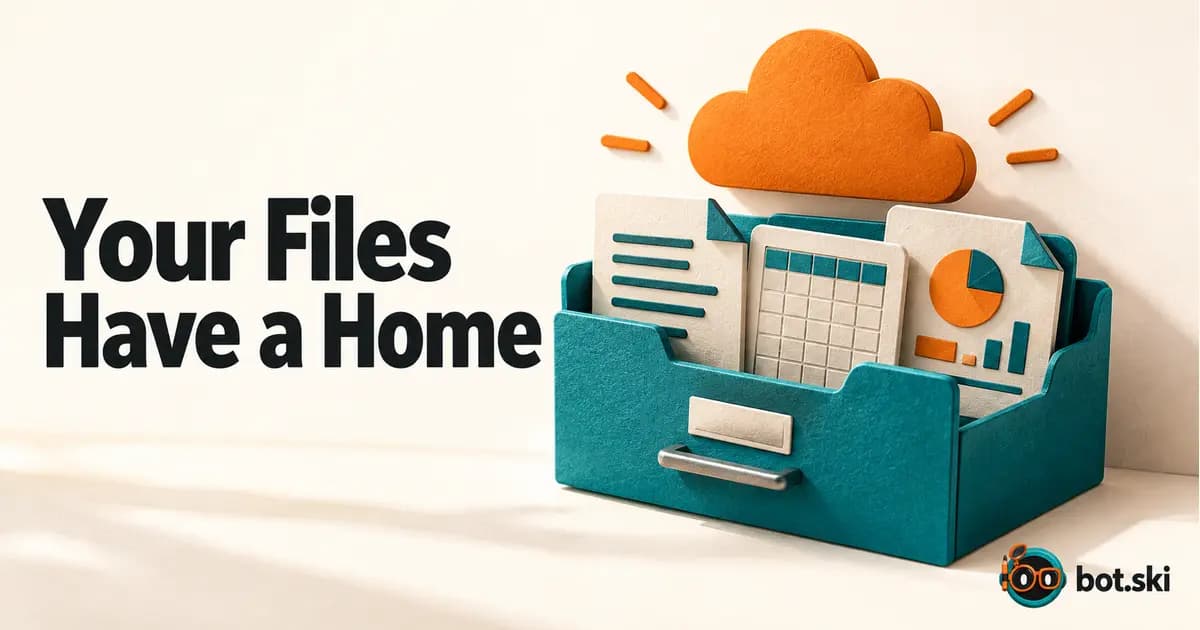
Useful work often ends as a real file: a spreadsheet, a report, a folder of screenshots. The official Files and results page tells you to ask for a result you can inspect, edit, and hand off. So instead of "paste the numbers here," try "save the spreadsheet on the computer and show me the path."
How it works
1. You attach files and say what each one is. 2. The Bot works on its cloud computer. 3. It saves the result as a file. 4. A file card appears in the chat, where you can preview it, save it or give feedback. 5. The file also sits in /workspace on the shared computer, so your other Bots can read it. 6. Ask for a revision of the same file when you need one.
Ask for a file, step by step
| Step | What to say or do | Why |
|---|---|---|
| 1 | Attach your inputs and say what each one is: "The PDF is the policy. The spreadsheet is this month's transactions." | The docs ask you to tell the Bot how to use each attachment |
| 2 | Name the artifact and its columns or sections | A spreadsheet with defined columns beats a pasted table |
| 3 | Add "Do not modify the originals." | Keeps your inputs safe |
| 4 | Ask for the path and a short summary | You can open the file and check it |
| 5 | Open the card in the chat to preview it | Files, images and links show as cards you can preview and save |
| 6 | Ask to revise the same file | "Update the report you just created" avoids disconnected copies |
Label folders, because the computer is shared
Every Bot on your account shares one computer. The docs say Bots can read files other Bots save in /workspace, so use project folders and descriptive names to make handoffs reliable. The conversation should still contain the final result or a clear link to it. Clean up anything sensitive when a job ends. For what that computer can and cannot see, read What your Bot can see.
Common questions
What can I attach? The docs list images, audio and video; PDF and text; Word, Excel and PowerPoint; CSV, JSON, YAML and code; HTML and email files; and Jupyter notebooks. The desktop composer takes up to six attachments at a time. Documents, images and audio can be up to 25 MB each, and videos up to 200 MB.
Where do I find files a Bot shared earlier? The September 28 changelog added a Library tab in a Bot's info pane that lists the pages, files and links it has shared, grouped into Today, This week and Older.
Can I open a file path the Bot mentions? Yes. The September 11 changelog says you can click a file path in a message to open that file from your Bot's computer.
How do I make a result easy to check? The docs suggest asking for source links, screenshots, timestamps with time zones, file names, a short action log, and a list of anything the Bot couldn't verify.