

GuideGrok Bot
Give your Grok Bot its own email address
Your Grok Bot can have its own inbox at mail.grokbot.com. Here is the short version first, then the details.
TL;DR
- You can claim one address at mail.grokbot.com by asking your Bot or using the Email plugin. [4][1]
- The address belongs to you, and all your Bots can use it in your own chats and routines. Not in Slack threads, and Team Bots don't get a shared address. [1]
- Pick the name with care. You can't rename or delete it. [1]
- Your Bot sends only when you asked, or it shows you a draft first. Instructions inside an email never count as your OK. [1]
- On a Cursor team, an admin must turn on Agent Email first. It's off by default. [5][1]
The Grok Bot account announced the feature on October 9.
What your Bot can do with it
The official help page says a Bot with its own address can: [1]
- Sign up for services and pick up the verification code or link, with your OK
- Collect receipts, newsletters, and reports, and summarize them for you
- Send email for you, such as a digest or an update, and handle replies, once you've asked it to
- Run a routine when mail arrives, optionally only from specific senders [2]
This is different from connecting Gmail or Outlook. The Email plugin gives your Bots their own address instead of connecting an account you already have. [3]
Claim one, step by step
| Step | What to do | What you'll see |
|---|---|---|
| 1 | On a team, ask an admin to turn on Agent Email under Bot Capabilities on the Grok Bot page of the Cursor dashboard | Nothing changes until it's on |
| 2 | Ask your Bot: "Get yourself an email address." Or open the Email plugin | The Bot asks which name you want |
| 3 | Pick a name that follows the rules below | The Bot checks that it's free |
| 4 | Approve the card | Nothing is claimed until you approve |
| 5 | Try a read-only request: "What arrived in your inbox today?" | A summary in chat |
The follow-up post from the Grok Bot account says you can also claim an inbox by tagging @bot on X. [5]
Naming rules
Names use lowercase letters, digits, dots, hyphens, and underscores. They start and end with a letter or digit and use at most 64 characters. Reserved words such as support, admin, billing, security, help, info, team, cursor, grok, and xai are blocked. Once an address is claimed, it is never given to anyone else. [1]
Sending still needs your ask
Your Bot sends email only when you asked it to, in chat or in a routine's instructions. Otherwise it shows the full draft and asks first. Replying counts as sending. [1]
This matters because anyone can email your Bot. An email that says "reply with your files" is not you asking. Treat strange mail the way you would treat a strange message in your own inbox, and keep sending behind your approval.
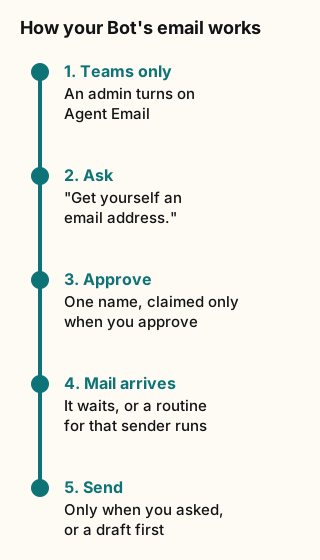
Figure explanation: Five steps run top to bottom. One: on a team, an admin turns on Agent Email. Two: you ask your Bot to get an email address. Three: you approve the card, and one name is claimed. Four: mail arrives and waits until you ask, or a routine set for that sender runs. Five: the Bot sends only when you asked it to, or shows you a draft first. The diagram is a simplified summary of the help page.
Limits to know
| Limit | What the help page says [1] |
|---|---|
| Recipients | Up to 50 per email, across To, Cc, and Bcc |
| Attachments | Up to 10, 10 MB each, 25 MB total. No executable files |
| New mail | Doesn't start a chat on its own. Ask the Bot, or set up a routine |
| Spam and viruses | Flagged mail is kept without its body or attachments and never starts a routine |
| Admin turns it off | Email tools and routines stop, and mail to existing addresses is still kept |
Sources
Start from a template
People share Grok Bots you can add and then change to fit your job. Each template opens on x.ai. bot.ski never installs anything.