
GuideGrok Bot
Grok Bot Team Bots: the complete beginner's guide
A Team Bot is one Bot your whole Cursor team can talk to. Here is the short version first, then the details.
TL;DR
- A Team Bot is one Bot that one person owns and publishes to their Cursor team. Everyone on the team can then chat with it, and each person's chat is private.
- Team Bots always run in the cloud, and a Team Bot can't be your Primary Bot.
- You make one from New chat → Create new Team Bot, or from an existing Bot with Share → Publish to Team. Unpublish takes it away from the team without deleting it.
- Each teammate's own usage pays for their chats. The Bot asks before it uses your personal plugins in shared conversations.
- Owners can add Managers, put the Bot in Slack, and admins can add it for the whole team or chosen groups.
The Grok Bot account introduced Team Bots on September 28 as "shared AI teammates that learn as your team works with them."
This guide explains how they work, how to set one up, and what makes a good one.
What a Team Bot is
The official help page puts it simply: a Team Bot is a Bot one person owns and publishes to their Cursor team. After it's published, everyone on the team can chat with it, and each person's chat is private. The owner can't read teammates' chats, and teammates can't read the owner's.
Team Bots always run in the cloud. A Bot that runs on your own computer can't be a Team Bot, and your personal Bots don't change.
| Personal Bot | Public template | Team Bot | |
|---|---|---|---|
| Who talks to it | Only you | Each person who adds it talks to their own copy | Everyone on your team, each in their own chat |
| Who maintains it | You | Each copy's new owner, separately | The owner and any managers, and changes reach everyone |
| Memory | Yours | Starts from what the template shares, then separate per copy | Team memory, plus private notes with each person |
A Team Bot keeps two kinds of memory. Team memory is shared, and the Bot saves a fact there only when someone says the whole team should have it. It tells you when it does. Notes with each person stay private to that person.
Before you start
- You need to be on a Cursor team that has Grok Bot. If you don't see Create new Team Bot after choosing New in the sidebar, Team Bots aren't on for your team yet. Opening a Team Bot link then shows Team Bots Not Available.
- You create, set up and publish Team Bots in the desktop app. Teammates can use them from desktop, mobile and Slack.
- A Team Bot can't be the Primary Bot. Since v0.68.0 (October 5), Team Bots no longer appear in the primary Bot picker. If you try, Grok Bot says Team Bots can't be a primary Bot.
How to create and publish a Team Bot
Option A: start fresh
- Choose New in the sidebar (or press Cmd/Ctrl+N), then Create new Team Bot. Grok Bot creates a Bot named "New team bot" and opens its chat.
- Tell it what it should help the team with. One sentence is enough.
- Follow its setup steps. It asks for plugins, then secrets, then files. You can add skills too. Only add keys and files you're happy for the whole team to use.
- Give it a real name and description. Click the Bot's name at the top of the chat, then Edit details. Teammates can't see a Team Bot that still has the default name and no description. The description can be up to 140 characters. Write it in the Bot's own voice, like "I answer questions about our Datadog alerts."
- Try it on real tasks and correct it as you go.
- When it shows the card saying it's ready, choose Publish to team.
Option B: turn a Bot you already have into a Team Bot
- Open the Bot's Share menu and choose Publish to Team.
- The Bot makes a separate team copy. If most of its memories are personal, such as your family, health or schedule, it asks How should your Team Bot start? You can copy its chat and memories, or Start fresh.
- Work through the setup cards and choose what the copy gets: plugins, secrets, memories, skills, files and routines. Memories you don't pick stay private.
- Your personal Bot keeps working, and its chats don't move. The team copy stays hidden from teammates until you publish it.
After you publish
- Teammates find it under New → Team Bots, or by typing at least three characters of its name in the regular New search.
- Copy link sends it straight to someone. A Team Bot link opens the same shared Bot. That's different from a template link, which gives each person their own copy.
- Unpublish (click the Bot's name, then Unpublish) takes it away until you publish again. Teammates' chats and routines come back when you do.
- Deleting removes it for everyone, including their chats and routines, and can't be undone. If you might need it again, unpublish instead.
Managers
Once the Bot is published, the owner can add teammates as Managers: open the Bot's details, find Managers under Setup, choose Add, pick a teammate, then Add manager. A manager can change the Bot's profile, skills, plugins, secrets and Slack app, and every change reaches the whole team. Publishing, unpublishing and deleting stay with the owner.
Plugins, secrets and the "asks first" rule
| Plugin type | Whose access the Bot uses |
|---|---|
| Signs in with an account (OAuth) | The person talking to the Bot. Each teammate connects their own account. |
| Configured with a key or token | The Bot's own credential, the same for everyone |
| Custom MCP server, Remote HTTPS | The Bot's credential, or each person's sign-in if the server uses OAuth |
| Custom MCP server, Command | Runs on whichever computer the conversation uses. If it needs secrets, it works only in the owner's chat. |
A connected account always acts as the person the Bot is answering. One teammate's connection is never used for someone else.
When a Team Bot wants to use one of your personal plugins in a shared conversation, such as a Slack thread or group chat, it asks first. The card says Allow with the plugin name and offers Allow once, Always allow for this Bot, Always allow for all Team Bots or Skip. To reset those answers, go to Settings → General → Team Bots → Clear connector preferences.
Secrets on a Team Bot are usable in every teammate's conversation, so treat each one as access you're giving the whole team. Teammates never see the values, and neither does the Bot, which uses a secret by name and sees [REDACTED] in output. A Team Bot holds up to 25 secrets. Prefer scoped, read-only service keys.
Where the work runs
| Conversation | Computer |
|---|---|
| The owner's own chat | The owner's computer |
| A teammate's chat in the app, or their 1:1 Slack DM | Usually that teammate's own computer |
| Slack channels, group DMs and threads | One shared computer for that Bot |
Because Slack channel threads share one computer, don't share anything there that shouldn't be visible to everyone in the channel.
Who pays: usage
When a teammate talks to a Team Bot, in the app or in Slack, the usage counts against that teammate's own Grok Bot allowance, not the owner's. A routine counts against whoever set it up. Slack posts that don't come from a linked teammate, such as Slack workflow posts, count against the owner. If a teammate is out of usage, the Bot tells them instead of using the owner's.
Routines are personal too. A routine belongs to the person who set it up, runs as them and reports in their chat. To share a routine's output, have it post to a shared Slack channel.
Team Bots in Slack
A published Team Bot can get its own Slack app, named after the Bot and using its avatar.
- Click the Bot's name, find Bring to your team's Slack and choose Connect. Before publishing, this reads "Connect after publishing."
- Pick a workspace you can install apps in. If your workspace needs approval, you'll see Awaiting admin approval and can Send request in Slack.
- Invite it to channels, for example with
/invite @BotName. - Each teammate links their Slack account once under Settings → General → Team Bots → Link.
In DMs it answers every message. In channels it answers when someone @mentions it, then follows that thread. Since v0.68.1 (October 7), a Team Bot can mention a Slack user group so its members get notified, while @here and @channel still don't ping anyone.
For admins
On the Grok Bot page of the Cursor dashboard, Team Bots → Manage Team Bots lets an admin choose who gets each Team Bot in their sidebar automatically: All team, None or specific groups. Members who get one this way see "Required by your admin. You can't turn this off." Admins can also delete a Team Bot for everyone. Only the owner and managers change its plugins, secrets, skills and files.
Four example Team Bots
| Team Bot | Job | Plugins it might use | Good first rule in its description |
|---|---|---|---|
| Metrics helper | Answers "how did we do last week?" from your data warehouse | Warehouse connector with a read-only key | "Answer from the warehouse only; say when data is missing." |
| Docs keeper | Keeps docs current as PRs ship | GitHub, your docs tool | "Draft doc changes as PRs; never merge." |
| Request triage | Sorts requests posted in a Slack channel | Slack, your issue tracker | "File tickets as the person who asked." |
| Helpdesk | Answers internal questions from a knowledge base | Files (FAQs, playbooks) | "Link the source doc in every answer." |
All four jobs come from the official docs' list of work Team Bots suit. For a real-world version, Lauren Tan (@poteto), who leads Grok Bot, described building two Team Bots on October 6: "sandcastle," a release manager, and an engineer Bot. Both live in a Slack release channel. Sandcastle DMs contributors about what's in the next release, kicks off and watches the build, and the engineer Bot spins up a Cursor Project to triage and fix high-priority issues.
Tan has also pointed people to Team Bots when they want to share a Bot and use it in Slack:
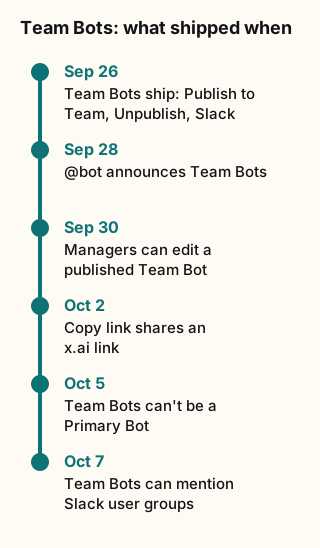
Figure explanation: Six dates run top to bottom. September 26: Team Bots ship with Publish to Team, Unpublish and Slack. September 28: the Grok Bot account announces Team Bots. September 30: managers can edit a published Team Bot. October 2: Copy link shares an x.ai link. October 5: a Team Bot can't be the Primary Bot. October 7: Team Bots can mention Slack user groups. The diagram is a simplified summary of the changelog, not a full release history.